Playlist Window
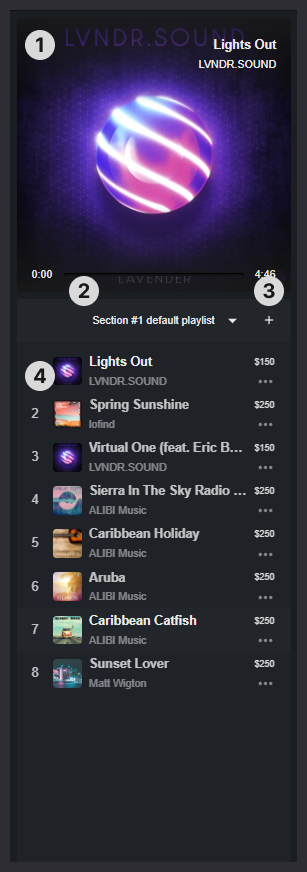
Current Song Display
Displays the song currently selected for playback in the section. This song will be played and the theme will react to it.
Current Section Playlist 2
Shows the active playlist assigned to the section.
Use the dropdown menu next to the playlist title (e.g., New Playlist #2) to select or create other playlists for your project section and easily manage your musical structure.
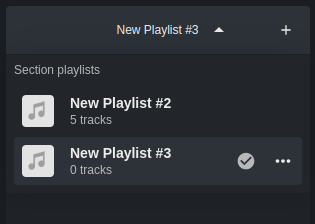
Create Section Playlist 3
Click to create a new playlist for the current section. This allows you to build and curate an alternative set of tracks specific to the section's context.
Current Section Playlist Songs 4
It shows:
- All tracks contained within that playlist.
- Each track has an individual volume control accessible via its three-dot icon. It can be used to ensure a balanced volume across all tracks in a playlist. These volumes are persisted when downloading bundles for integration in your game engine.

- You can load a specific track by double clicking it. Once loaded, tracks are automatically analyzed to enable smooth integration when associated with Reactional Themes. This process takes a few seconds.
Tracks can be added to a playlist in two ways:
- Drag and drop a track from the Track panel (on the right) into the playlist area within the main canvas
- Use the menu (available via the three-dot icon or right-click) on any track in the Track panel and choose “Add to Playlist”